


AI Photo Editor - BgMaster™
4.6475.00 Reviews
App Specs
- Version
- 1.3.5
- Updated On
- License
- Free
- Downloads
- 5,000,000+
- Developer
- Smart AI DEV
- Categories
- Photography
- Platform
- Android
Screenshots


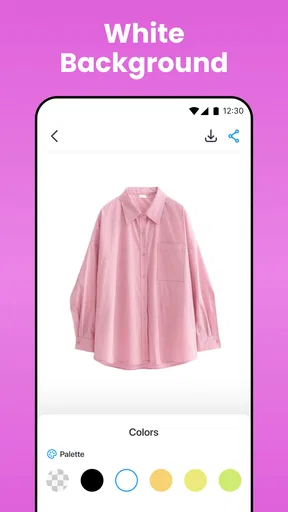
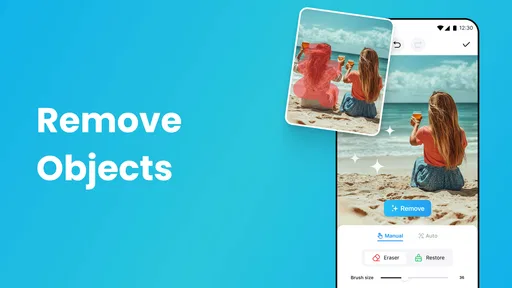
 Analysis by AppCompare
I like a photo editor best when it helps me fix one specific annoyance without turning a quick touch-up into a project. AI Photo Editor, Remove Object is aimed at that kind of everyday cleanup: removing a distracting element, improving a picture with a light touch, and getting back to sharing or saving it. It is a free photography app from Smart AI DEV, with optional in-app purchases, and its appeal is the promise of straightforward edits rather than a complicated editing workflow.
Where a quick edit can get stuck
The first thing I would keep in mind is that removing an object is not the same as recovering the original background. The editor has to make a plausible fill where the selected item used to be, so a small mark against an open sky is a much easier job than a person crossing a patterned wall or a busy street. When the replacement looks slightly smeared or oddly repeated, that is a limit of the image and the edit, not necessarily a sign that the app has stopped working.
I would also approach the selection carefully. If the brush covers too much of the surrounding area, the app has more to reconstruct and may alter details that should have stayed untouched. If it covers too little, a fringe of the unwanted object can remain. For a clean result, I’d zoom in if the controls allow it, work around the object’s outline, and check the edges before accepting the change. A couple of deliberate passes can be more useful than one broad swipe.
My practical rule is to judge the edit at the size where the photo will actually be viewed. A tiny flaw may disappear in a social post but stand out in a close crop or a large print. If the object overlaps a face, a sharp edge, or a recognizable pattern, I would keep the original and compare versions rather than assuming the first result is good enough.
Simple checks before you begin
Before editing, I’d make sure I have the right photo open and keep an untouched copy available in my gallery. That gives me an easy way back if a retouch goes too far, and it lets me compare whether the cleanup genuinely improves the picture. I also find it helpful to decide on the final crop first: removing something that will be cropped out anyway is wasted effort, and changing the framing afterward can make a previously subtle repair more noticeable.
The app is rated for Everyone, and the current version is 1.2.5, with Android 6.0 as the minimum operating-system requirement. Those details make it relevant to people using older Android devices, though actual responsiveness can still depend on the phone and the size of the image. The app has a 4.6 average from around 56,000 ratings and more than a million installs, which suggests broad interest, but I would still test it on a copy of a photo that matters less before relying on it for a treasured image.
It is free to install, while in-app purchases range from $4.99 to $99.99 per item. I’d take a moment to inspect any purchase screen before confirming anything, especially if I only need an occasional cleanup. A single edit may be enough for a casual user; someone who expects to retouch photos regularly should first decide whether the paid options fit that routine and budget.
Worth Reading Before You Choose

Flipboard Shows What News Apps Must Do Beyond the Feed

Switching to Android Auto Means Rethinking Your Driving Routine

Google Calendar Makes a Crowded Week Easier to Manage

Ludo King Makes the Most of the Minutes Between Plans

Baby Panda World Brings Quick Play to Modern Phones, but Its Game Library Feels Busy

ESPN’s Live Game View Makes Following Close Games Easier
Recovering a workflow when an edit disappoints
If a result looks wrong, I wouldn’t keep adding edits on top of it. I’d undo or return to the unedited image if that option is available, then make a smaller selection and try again. This is particularly useful around thin objects such as wires: selecting a narrow strip can preserve more of the surrounding sky or wall than painting a wide patch across it.
For objects with complicated outlines, I’d split the job into manageable sections instead of treating the whole subject as one shape. That gives the editor a better chance to blend each area with nearby texture, and it makes it easier to spot exactly where a repair has gone off course. I’d also avoid repeatedly saving over the only copy. Keeping a clean original and a separate finished version is a simple habit that prevents an imperfect retouch from becoming permanent.
When the app may not be the cause
A weak result can come from the source photo as much as from the editing tool. Motion blur, low detail, strong shadows, reflections, and overlapping subjects leave less visual information for an editor to work with. A power line against a plain patch of sky is a much fairer test than a hand or face against a busy background. If the repair looks unnatural, a tighter crop or a different photo may solve the problem more effectively than another attempt at removal.
It is also worth checking the image after the edit rather than judging only the selected area. Removing one distraction can shift attention to another, or a repair can make the composition feel unbalanced. I’d look at the whole frame, then decide whether a small crop, a restrained enhancement, or leaving the photo alone produces the most believable result. Editing is not automatically an improvement just because a tool can change the image.
Getting Started with AI Photo Editor
First things first, downloading and setting up AI Photo Editor, Remove Object was a breeze. Available for both Android and iOS, the app doesn’t demand a hefty amount of storage or resources, which is a relief for those of us still clinging to our older phones. Once installed, the interface is clean and intuitive, making it easy to navigate even if you’re not a tech whiz.
Features That Stand Out
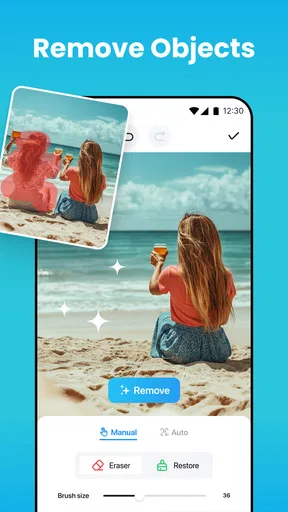
This app packs quite a punch with its range of features. The standout one, of course, is the ability to remove unwanted objects from your photos. Using advanced AI technology, it seamlessly blends the background to make it look like those intruders were never there in the first place. The whole process is surprisingly simple - just highlight the object you want gone, and voila!
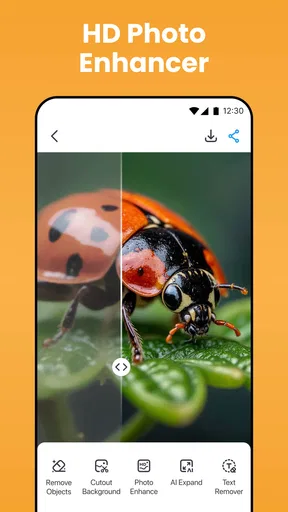
Beyond object removal, the app offers a variety of other editing tools. You can adjust brightness, contrast, and saturation with just a few taps. There’s also a selection of filters to give your photos an extra pop. While these features are quite standard, they’re implemented well, making the app a solid all-rounder for basic photo editing needs.
User Experience: Smooth and Satisfying
Using the app feels fluid and responsive. The AI processing is quick, and I didn’t encounter any annoying lags or crashes. The developers have done a commendable job in ensuring that even those with minimal editing skills can achieve professional-looking results. It’s like having a personal photo studio right in your pocket.
One feature I particularly enjoyed was the tutorial section. It’s filled with helpful tips and step-by-step guides on how to make the most out of the app’s capabilities. Whether you’re a beginner or someone looking to hone your skills, this feature is a great resource.
AI Magic: Does It Really Work?
Now, onto the million-dollar question: does the AI really work as advertised? In my experience, yes, it does. The object removal tool is impressively accurate. It worked wonders on most of my test photos, especially those with clear backgrounds. However, it might struggle a bit with more complex backgrounds, but that’s pretty much expected with most AI editing tools out there. Still, the results are far better than I anticipated.
Seeing the app in action is like watching a magic trick unfold. One moment you have an unsightly power line cutting across the sky, the next moment it’s gone without a trace. It’s these little moments of magic that make AI Photo Editor, Remove Object so satisfying to use.
Who will get the most out of it
I’d recommend this app most to someone who takes plenty of phone photos and wants a quick way to tidy them up without learning a desktop editor. Think of a family picture with a stray object near the edge, a holiday shot with a sign competing for attention, or a product photo where a small background distraction makes the subject harder to notice. Its combination of removal and basic image adjustments is useful when the goal is a cleaner, more presentable photo rather than a full creative redesign.
For example, imagine taking a café snapshot while traveling and noticing a bright item on the table that pulls the eye away from the meal. I would first crop the frame to remove anything near the edge, then use object removal only for the distraction that remains. Afterward, a modest brightness or contrast adjustment may be enough. That order matters: cropping reduces the area that needs repair, while restrained finishing edits help keep the picture natural.
The same approach suits casual marketplace or social posts, where a small cleanup can make a photo easier to read. I would not use the result to misrepresent an important scene or alter documentary evidence. For personal photos, the tool is best treated as a convenience for presentation, not a way to claim that a changed image records exactly what was in front of the camera.
How it fits beside other photo editors
Compared with a phone’s built-in editor, a dedicated app like this is worth considering when the built-in tools do not give you a convenient way to remove an unwanted object. The basic editor already on a device may be the better choice for quick crops, exposure changes, and simple color tweaks, since there is no need to move between apps. AI Photo Editor makes more sense when cleanup is the reason you opened an editor in the first place.
At the other end, professional desktop software gives experienced users more control over selections, layers, and fine retouching. That extra control is useful for complex repairs, but it also brings a steeper learning curve and a slower process for a one-off phone photo. I see this app as the middle ground: less involved than a full editing suite, more focused on removal than a standard gallery editor, and not a substitute for detailed retouching when precision is critical.
Its other tools also help with quick finishing, but I would not choose it primarily for elaborate color grading or a carefully repeatable professional workflow. Filters and basic adjustments are handy for everyday use; people who need precise control over a large batch of images may prefer an editor built around those tasks. The useful question is not whether it can replace every photo app, but whether its cleanup workflow saves effort on the pictures I actually take.
Small habits that make edits more convincing
One useful habit is to inspect the area around an object before removing it. Ask what texture should continue behind it: plain sky, a tiled surface, grass, or a straight architectural edge. The more predictable that surrounding pattern is, the more forgiving the repair is likely to look. If the object blocks a unique detail, such as part of a sign or a distinctive line, I would expect the software to invent a plausible patch rather than restore the exact hidden information.
I also avoid stacking enhancement and removal blindly. If the one-tap enhancement changes the look of the entire image, I’d compare that version with the original before applying more adjustments. Strong global changes can make a repaired patch easier to notice by increasing contrast or sharpening neighboring texture. A gentle touch is usually safer: remove the distraction, inspect the result, then adjust the overall photo only if it still needs help.
For a photo intended to be shared, I’d check it once at normal size and once by zooming into the repaired spot. At normal size, the composition tells me whether the edit works; close inspection catches repeated patterns, soft edges, or leftover fragments. If a flaw remains visible, I’d consider cropping or choosing another frame rather than spending too long trying to make a difficult repair perfect.
Practical verdict
All in all, if you’re someone who loves clicking pictures and wants to polish them up without diving into the complexities of professional editing software, this app is definitely worth a shot. It’s user-friendly, efficient, and most importantly, fun to use. Plus, having the ability to remove unwanted elements from photos is a game-changer.
In a world where capturing the perfect shot can often seem elusive, AI Photo Editor, Remove Object brings you a step closer to achieving just that. Whether it’s enhancing your social media game or preserving cherished memories, this app is a trusty companion. So, go ahead and give it a whirl – you might just find yourself hooked!
My recommendation comes with a clear boundary: I’d use it for small, everyday fixes and quick finishing, not for repairs that must preserve every detail or for photos where authenticity matters. If the selection is simple and the background is forgiving, it can save time and make a picture feel more intentional. If the scene is crowded, the object covers important detail, or the edit needs to hold up under close scrutiny, a more precise editor—or simply keeping the original—is the wiser choice.
Pros
- User-friendly interface
- easy to navigate.
- Advanced AI for precise object removal.
- Supports high-resolution image exports.
- Variety of editing tools beyond object removal.
- Quick processing
- saves time on edits.
Cons
- Limited free features
- many require purchase.
- Occasional glitches in complex edits.
- High-quality exports drain battery quickly.
- Requires stable internet for optimal performance.
- Ads can be intrusive in free version.
FAQs for AI Photo Editor - BgMaster™
What features does the AI Photo Editor, Remove Object offer?
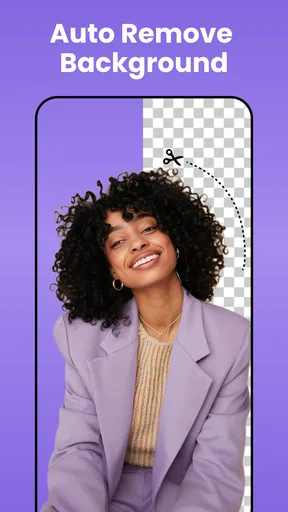
The AI Photo Editor, Remove Object provides a range of features including object removal, background change, and advanced editing tools like filters and adjustments. The app uses AI technology to seamlessly remove unwanted elements from photos, making it ideal for enhancing images without complex manual editing.
Is the AI Photo Editor, Remove Object easy to use for beginners?
Yes, the app is designed with a user-friendly interface that caters to both beginners and advanced users. It offers guided tutorials and intuitive controls, allowing users to easily navigate through features like object removal and photo enhancements, ensuring a smooth editing experience for all skill levels.
Does the app support high-resolution image editing?
The AI Photo Editor, Remove Object supports high-resolution image editing, allowing users to work on photos without losing quality. The app is optimized to handle large file sizes and offers tools that maintain the integrity of the image, ensuring professional-grade results even after extensive edits.
Are there any in-app purchases or subscription fees?
While the AI Photo Editor, Remove Object offers a free version with basic features, there are optional in-app purchases and subscription plans available. These provide access to premium tools, additional filters, and advanced editing options, allowing users to maximize their editing capabilities.
Is the AI Photo Editor, Remove Object available for both Android and iOS?
Yes, the app is available for download on both Android and iOS platforms. Users can find it on the Google Play Store and the Apple App Store, ensuring compatibility with a wide range of devices. Regular updates ensure the app stays current with the latest features and improvements.


